
A LITTLE LESS PHONE · A PRACTICAL GUIDE
How to block distracting apps on iPhone.
Keep the useful parts of your phone. Put a little space between you and the apps you keep opening.
The short answer: use Screen Time for daily limits or scheduled breaks. Use Focus to control notifications. If you want a physical action before returning to selected apps, a puck and companion app can add that step.
You can start with Apple’s free settings. You don’t need to buy anything to try the first three options below.
First, decide what you want to change.
“Block my apps” can mean a few different things. Think about the moment you want help with: losing track of time, opening an app during work, or picking up your phone whenever it pings.
01 · A DAILY BUDGET
Set a daily limit for distracting apps.
This is a useful first experiment when a short visit regularly becomes a long one. Pick the app you actually want to spend less time in, rather than restricting a whole category straight away.
If you see Time Allowances
- Open Settings → Screen Time → Time Allowances.
- Adjust the daily budget and the allowance for the relevant category.
- Use Manage Categories to add or review categories.
If you see App Limits instead
- Open Settings → Screen Time → App Limits → Add Limit.
- Select a category, or expand it to choose individual apps.
- Continue to the time setting, choose your allowance and save.
Apple instructions: Time Allowances · App Limits on iOS 26.
Make it realistic. If you currently spend an hour in an app, try a smaller reduction you’re willing to keep. Treat the first limit as a starting point, then review what happened after a few days.
The limitation: self-managed limits depend on your settings and your willingness to leave them in place. A daily budget is less useful if the real problem is repeatedly opening an app during one particular task.
02 · A TIME AND A PLACE
Schedule time away from apps.
Try this when the boundary matters more than a daily total: dinner, an hour of work or the part of the evening you want back.
If you see Screen Time Schedule
- Open Settings → Screen Time → Screen Time Schedule and enable the schedule.
- Add a schedule and choose the days.
- Edit a time window’s hours and available categories.
If you see Downtime instead
- In Settings → Screen Time, enable App & Website Activity if needed.
- Open Downtime → Scheduled and choose your days and hours.
- With a Screen Time passcode set, enable Block at Downtime for blocking rather than a reminder.
Check Screen Time → Always Allowed for the apps and contacts you want available. On earlier versions, default limits can be ignored. Apple’s schedule guidance and iOS 26 Downtime guidance explain these settings.
Start with a specific promise. “No social apps while we eat” is easier to test than “use my phone less”. After setting it up, check that the apps and people you need are still available.
03 · FEWER INTERRUPTIONS
Use Focus when notifications are the problem.
A quiet phone can still be a useful phone. Focus lets you choose which people and apps can notify you during a particular part of your day.
- Open Settings → Focus and choose an existing Focus or create your own.
- Review People and Apps to choose what can interrupt.
- Use a schedule if you want it to turn on automatically.
Focus doesn’t itself prevent you opening a distracting app. Use it for interruptions; pair it with an app restriction if opening the app is the habit you want to change.
For example, you might want calls from family while keeping social notifications quiet during dinner. Check the people, call and app settings in your chosen Focus, then test them. Apple’s Focus setup guide explains the available controls.
04 · A PHYSICAL PAUSE
Make returning to an app a deliberate action.
Sometimes the missing piece is a boundary outside the phone. A physical app blocker pairs an object with an app so that a scan becomes part of starting or ending your break.
We make hushpuck, so this is our product’s place in the guide. Other physical blockers have their own features and recovery rules. Compare those details before choosing one.
How hushpuck works
- Set up a registered puck and allow Screen Time access.
- Choose the distracting apps you want that puck to pause.
- Scan to Hush, then leave the puck somewhere you have to return to.
- Scan any of your paired pucks to Unhush.
On the hallway table. On your fridge. Across the room. Somewhere that gives you a moment to decide before you return.
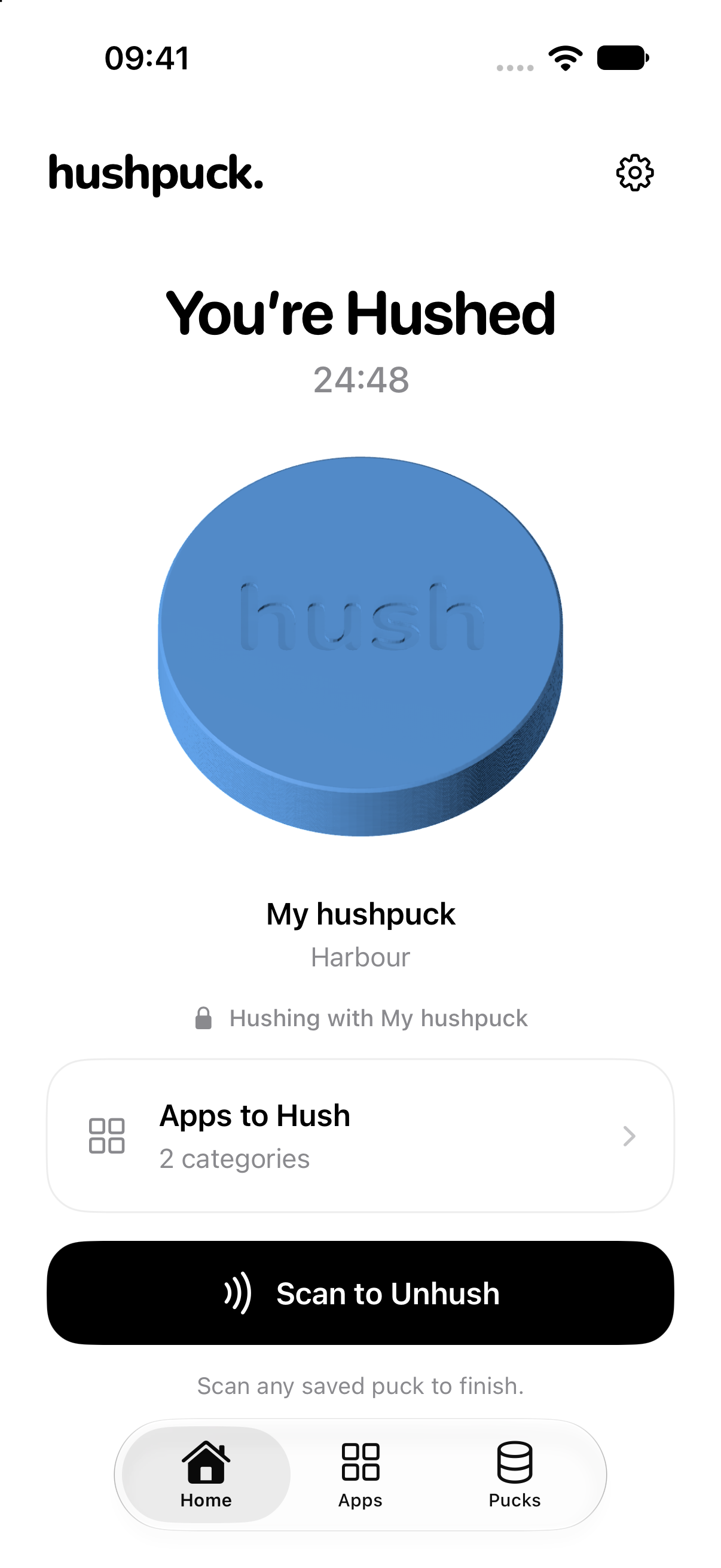
hushpuck requires a supported iPhone with iOS 17 or later. Your first setup needs internet; paired pucks work offline. App selections stay on your iPhone, with no hushpuck account or cloud sync. One puck is £29 or a pair is £49, with the companion app included and no subscription.
Know the escape route. hushpuck has an offline recovery action if you can’t reach your puck. It is a tool for your own choices, not an unbreakable lock or a parental-control system. App restrictions also aren’t a promise that every notification will be silenced; use Focus for notification choices.
Read the setup, compatibility and recovery details · See hushpuck.
Try one small change today.
Choose one app, one moment and one thing you’d rather do.
- The app
- The one you open without really deciding to.
- The moment
- Your first coffee, dinner or the hour before bed.
- The alternative
- A chapter, a walk, a conversation or finishing what you started.
Try the simplest setting that fits. After a few days, ask whether it helped you spend that moment how you wanted. Adjust the boundary if it didn’t.
You don’t need to make your phone useless. You’re choosing which parts of it deserve your attention, and when.
A few common questions.
Can I do this without buying a blocker?
Yes. Start with the Screen Time and Focus options above. A physical blocker is an optional extra if you want a separate object involved in your routine.
Why can I still open apps with Focus turned on?
Focus manages interruptions; it isn’t an app-access lock. Choose a Screen Time limit or schedule if you want to restrict use.
Will blocking an app also block its website?
Don’t assume every route is covered. Apple says an iOS 27 Time Allowance includes an app’s associated website when the app declares one. Check the site in your browser as well as the app, and review website restrictions separately if needed. See Apple’s explanation.
What if I’m setting up a child’s phone?
This guide is about managing your own iPhone. For a child’s device, use Apple’s family Screen Time and parental-control guidance. The permissions, passcodes and controls are different.